
Difference between revisions of "Upload Teams Meeting Recording to Panopto"
From Help Wiki
m |
m |
||
| Line 13: | Line 13: | ||
===Locate and Download the Team Meeting Recordings=== | ===Locate and Download the Team Meeting Recordings=== | ||
| − | + | Team Meetings scheduled and initiated via the Microsoft Education Teams Meetings app will store meeting recordings in the meeting organizer's One Drive. | |
| − | + | #Access the recordings to be added to Panopto from your OneDrive. Go to '''OneDrive > My Files > Recordings''' | |
| − | + | #Click on the three breadcrumb dots next to the file name and select '''Download'''. | |
| − | + | See also: [https://support.microsoft.com/en-gb/office/record-a-meeting-in-microsoft-teams-34dfbe7f-b07d-4a27-b4c6-de62f1348c24 Microsoft's Record a Meeting] documentation. | |
| − | + | ||
| − | + | ||
| − | + | ||
| − | + | ||
| − | + | ||
| − | + | ||
| − | + | ||
===Upload Recordings to Panopto=== | ===Upload Recordings to Panopto=== | ||
Revision as of 07:38, 1 October 2025

The following instructions assume you have successfully:
- Configured Microsoft Education
- Enabled the Teams Meeting App
- Successfully scheduled and recorded a Teams Meeting
Learn more: Microsoft Education and Team Meetings in Canvas
Initial setup
Activate Panopto Video before usage by clicking on the "Panopto Video" link in the Canvas course navigation menu.
Locate and Download the Team Meeting Recordings
Team Meetings scheduled and initiated via the Microsoft Education Teams Meetings app will store meeting recordings in the meeting organizer's One Drive.
- Access the recordings to be added to Panopto from your OneDrive. Go to OneDrive > My Files > Recordings
- Click on the three breadcrumb dots next to the file name and select Download.
See also: Microsoft's Record a Meeting documentation.
Upload Recordings to Panopto

- In Canvas, navigate to the Panopto Video menu, click on the green Create button, and select Upload media.
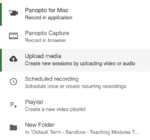
- By default, it will be set to save the uploaded video to your Canvas course Panopto folder. Alternatively, you can select My folder to have videos drafted in a private location before making them live.
- Drag and drop the video file into the upload window, then close it. The video will upload in the background.
- After the upload is complete, rename the video by clicking on the Settings button.

Note: The above is an interim solution until we finalize the Microsoft Teams /Panopto integration (similar to what we currently have with the Zoom/Panopto integration).
See also:
Related:
- Getting Started with Panopto
- Upload Teams Meeting Recording to Panopto
- Sign into Panopto with SSO
- Learn more at Panopto Support
Get Help

Submit a technology support request
No account or having problems logging in?
Request help as a guest

