
Sem1 AVclassrooms
Seminar 1 . We are hoping to grow this into a complete training and reference resource for these spaces.
Training
- VIDEO Sem1 Training - contractor-presented Sem1 AV training DRAFT2, video - runtime 19m19s
- DOCUMENT Sem1 Hybrid-Flex Standard Operating Procedure - thank-you to Carrie LeRoy, et al. for this contribution
System
- The Audio Video systems of Sem1 classrooms are controlled via touch panels. Larger rooms have touch panels on the lectern, smaller rooms have a 3-inch touch panel mounted on the wall. For more details, visit the Touch Panel Overview.
- Sem1 - AV TouchPanel Overview How to Control
- The Sem 1 - Classroom AV racks hold the core of each classroom's AV system in a wall mounted enclosure. The Mac Mini is mounted here, and there are 2 USB-C ports on the front (a USB-A hub converts one for additional ports).
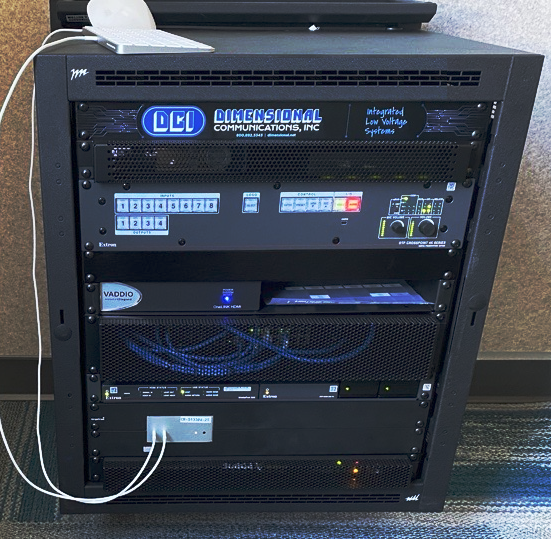

This image shows a Sem1 AV rack.
In the rack bays are the following:
- Wireless mac Keyboard and Mouse (on top of the rack)
- 1. Rack HDMI panel --or-- DCI nameplate (shown)
- 2. --covered with a security mesh-- CatchBox Receiver (for both wireless mics); Solstice Wireless AV device
- 3-4. Extron Crosspoint video switcher with AV control processor
- 5. blank plate
- 6. PTZ camera integration converter box(es)
- 7-8. --covered with a security mesh-- AV system networking
- 9. Extron MediaPort meeting bridge; encoder for display signal; Power supplies
- 10-11. Mac Mini ; If the top bay is NOT the Rack HDMI port, Rack HDMI is to the right of the Mac Mini
- 12. --covered with a security mesh-- power conditioner for rack
UNDER CONSTRUCTION ---notes to incorpate---
Main Screen Sources (for Projector:
Comouter (Mac Mini in the cabinet)
Wireless AV:
RackHDMI:
To use the Sem1 "wireless AV" input: Make sure your computer is on EvergreenSecure wifi Using Edge or Safari connect to the URL IP shown on the instructions of the wireless AV screen follow the prompts to authenticate the onscreen PIN select the window(pick from list)/browser/screen in the share selection.
As of noon on March 30, these steps have worked successfully on PCs. We've had no-go issues with Chrome and Firefox on PC and Mac so far.
_________
Bridge Sources (to the Extron MediaPort):
Camera 1
Camera 2
Wirelelss AV
RackHDMI
Catchbox Mics Lanyard/Clip Mic - The power button is on the back - it is behind the clip!
Is there some way to turn on the mini mac? Yes, next to where the face of the mac mini shows in the rack, just down from one of the corners is a black button - that is attached to a mechanism that depresses the power button on the bottom of the mac mini. So if its off, tap that should bring it on. Its also possible if it is in standby the keyboard may be able to wake it. under normal conditions they don't need to be turned off, they will go to a powersave mode when not in use, and reboot at 7AM every day.
---

