
Difference between revisions of "Change My Evergreen Account Password"
From Help Wiki
(4 > 9) (Tag: VisualEditor) |
(Tag: VisualEditor) |
||
| Line 17: | Line 17: | ||
#* At least 15 characters. | #* At least 15 characters. | ||
#* May not include your name. | #* May not include your name. | ||
| − | #* May not be the same as your last | + | #* May not be the same as your last nine (9) passwords. |
#* Must include three of the following: | #* Must include three of the following: | ||
#*# at least one upper-case letter | #*# at least one upper-case letter | ||
Latest revision as of 14:46, 15 June 2026
Instructions for changing your password.
Alert: Student, Faculty, and Staff passwords are set to expire every 365 days.
Changing Your Password
- Login to my.evergreen.edu
- Click on Profile link in the upper right corner
- Select the Change Password link.
- Sign in with your full evergreen email and current password.
- At the Change Password page, type in your current password and set a new, secure password.
- Your new password must meet the minimum requirements listed below:
- At least 15 characters.
- May not include your name.
- May not be the same as your last nine (9) passwords.
- Must include three of the following:
- at least one upper-case letter
- at least one lower-case letter
- at least one number
- at least one special character
- Confirm your new password in the second password box.
- Click the submit button.
- Once you click submit you will be redirected to your Evergreen Account Profile. From here you you will be able to review your account settings. Once everything is reviewed please choose the option "Sign out of everywhere" and navigate back to my.evergreen.edu to access your Evergreen resources.
Note for Evergreen-provisioned laptop users: PC Laptop users that are off campus will need to use the OLD password to log into their laptops UNTIL they return to campus with the laptop. At this point the laptop will check in with the servers and get the new password. Mac user’s computer passwords are not tied to the Evergreen domain password. Mac LAPTOP passwords are not required to change.
Update Your Password on All of Your Devices
- click Expand for detailed steps
- Windows: Clear Saved Passwords
- Click on the Windows 10 start icon
 or Windows 7 start icon
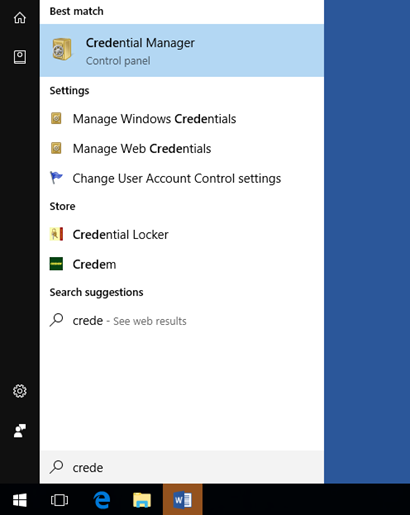
- Start typing “Credential”
- And as you type Credential Manager will populate under best match.
- Click on “Credential Manager”
- Click on the Windows 10 start icon



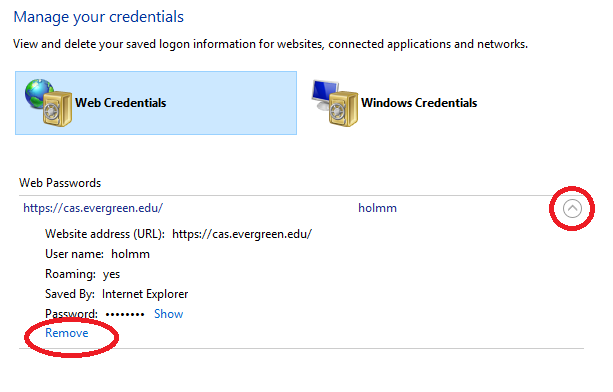
- In Credential Manager expand the password box by clicking the arrow
- Click “Remove” on all evergreen.edu passwords.
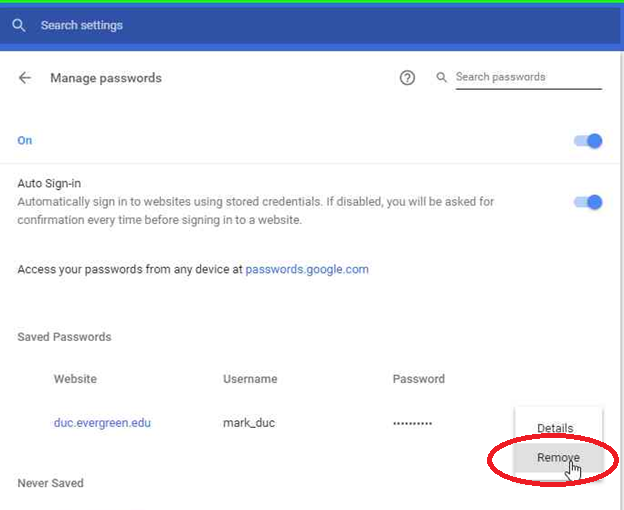
- You need to look under the Web Credentials and the Windows Credentials for these saved passwords.

- Mac: Clear Saved Passwords
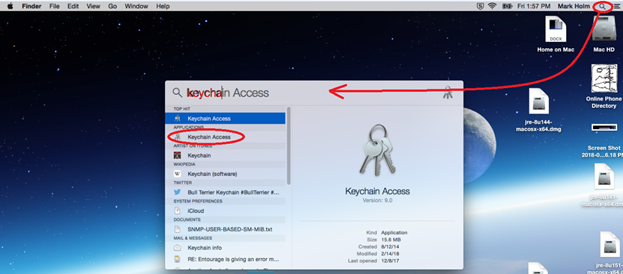
- Click on the spotlight search icon
 and type the word keychain in the search box
 - Select Keychain Access
- Click on the spotlight search icon


- From the Keychain application click on the Passwords Icon
 located in the left hand column.
 - The saved passwords will be listed.
- Control + Click on each password with evergreen.edu listed and choose Delete
- From the Keychain application click on the Passwords Icon


- Firefox: Clear Saved Passwords
- Click on the Browser menu and choose Preferences
- Choose Privacy & Security
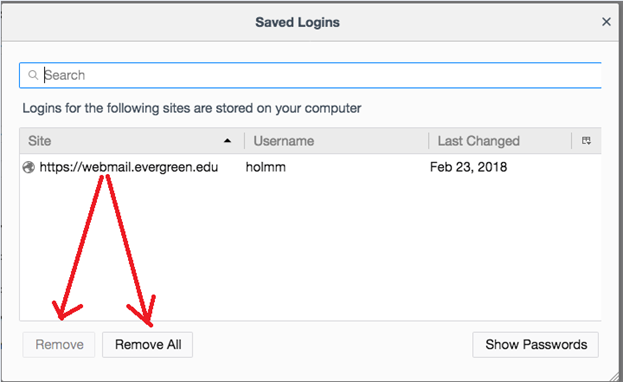
- Click Saved Logins….
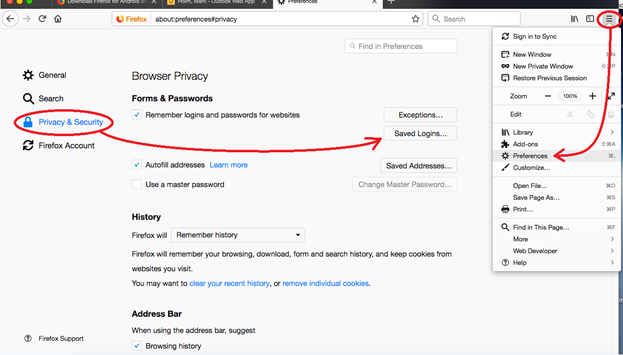

- Find the saved evergreen.edu passwords and click Remove Or you can click Remove All to get rid of all saved passwords.

- Chrome: Clear Saved Passwords
- From within Chrome, Click on the more actions icon
 and choose Settings
- From within Chrome, Click on the more actions icon

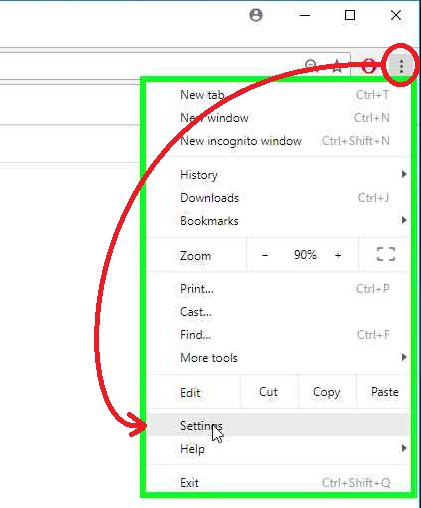

- Click on Settings
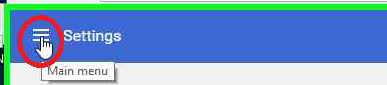

- Choose Advanced down arrow and then Passwords and forms
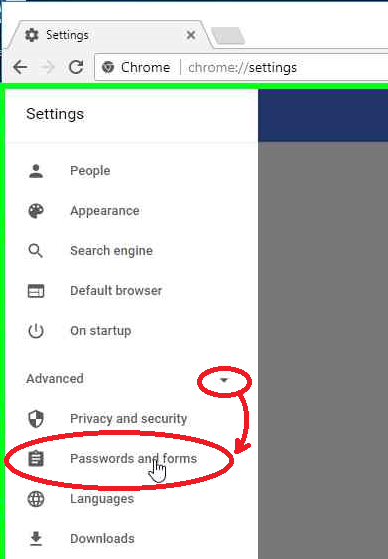

- Across from Manage Passwords click the arrow
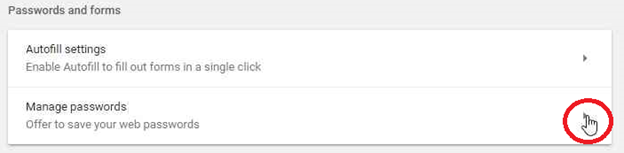

- Choose Remove on all Evergreen passwords

- Mobile Phone Clear Saved Passwords
- Put phone in Airplane mode
- Click on Mail App
- Find evergreen.edu email account
- Delete Account or Remove Account
- Re-Add Account with new password.
- If you have your Evergreen password saved on any device (such as a smartphone, tablet or home computer) be sure to update the password on those devices.
- The old password can cause you to get locked out of your account.
- Example: if you check your email on your phone and don’t have to type in your password each time you have a saved password. The phone will keep trying the old saved password and after 5 failed attempts your account will be locked for 15 minutes as a security measure before it lets you try again.
- If you need additional assistance please contact the Technology Support Center at 360 867-6627 or via email at support@evergreen.edu
My Evergreen Account Help
- My Evergreen Account Help for Students
- New Student Account Activation
- Faculty/Staff & Student Staff
- Former Student Accounts
- About My Evergreen Accounts
Get Help

Submit a technology support request
No account or having problems logging in?
Request help as a guest

