
Difference between revisions of "How to Open a Shared Mailbox - iOS"
From Help Wiki
m |
m |
||
| Line 5: | Line 5: | ||
===Accessing Outlook via the IOS Application:=== | ===Accessing Outlook via the IOS Application:=== | ||
# '''Open the Outlook IOS app''' and sign into your Evergreen account. | # '''Open the Outlook IOS app''' and sign into your Evergreen account. | ||
| − | # '''Open the Profile Menu.''' In the top left corner, click on your profile picture. This will open a menu. <br /> [[File:Shared_Inbox_IOS_Step2.png| | + | # '''Open the Profile Menu.''' In the top left corner, click on your profile picture. This will open a menu. <br /> [[File:Shared_Inbox_IOS_Step2.png|300px]] |
#* '''TIP:''' Your profile pic may be a large colored circle with you account initials on it if a picture has not been set. | #* '''TIP:''' Your profile pic may be a large colored circle with you account initials on it if a picture has not been set. | ||
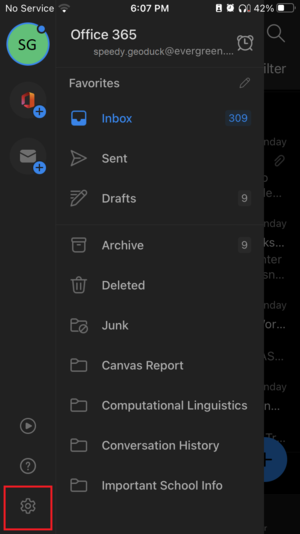
| − | # '''Tap the gear icon''' in the bottom left to open the settings menu. <br /> [[File:Shared_Inbox_IOS_step3.PNG| | + | # '''Tap the gear icon''' in the bottom left to open the settings menu. <br /> [[File:Shared_Inbox_IOS_step3.PNG|300px]] |
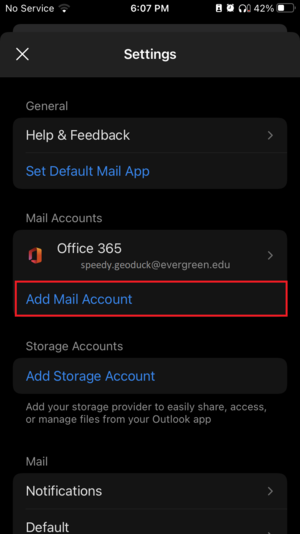
| − | # '''Tap "Add Mail Account".''' This will open a small menu at the bottom of the screen. <br /> [[File:Shared_Inbox_IOS_Step4.PNG| | + | # '''Tap "Add Mail Account".''' This will open a small menu at the bottom of the screen. <br /> [[File:Shared_Inbox_IOS_Step4.PNG|300px]] |
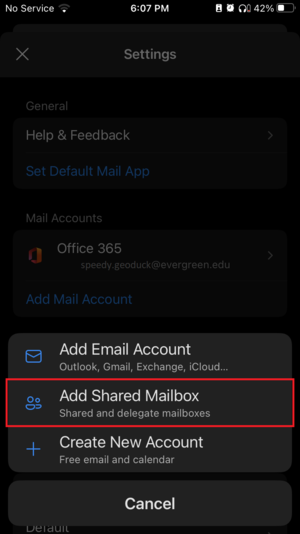
| − | # '''Tap "Add Shared Mailbox".''' <br /> [[File:Shared_Inbox_IOS_step5.png| | + | # '''Tap "Add Shared Mailbox".''' <br /> [[File:Shared_Inbox_IOS_step5.png|300px]] |
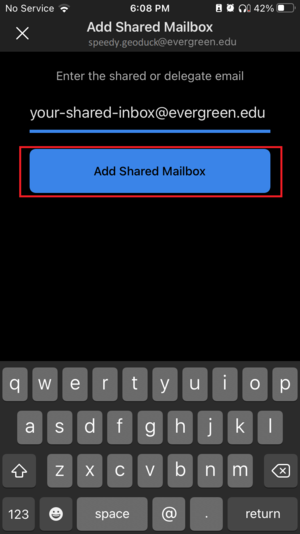
| − | # '''Enter your shared inbox address.''' Type in the email address for the shared inbox you need to open. Then tap the "Add Shared Mailbox" button below it.<br /> [[File:Shared_Inbox_IOS_step6.png| | + | # '''Enter your shared inbox address.''' Type in the email address for the shared inbox you need to open. Then tap the "Add Shared Mailbox" button below it.<br /> [[File:Shared_Inbox_IOS_step6.png|300px]] |
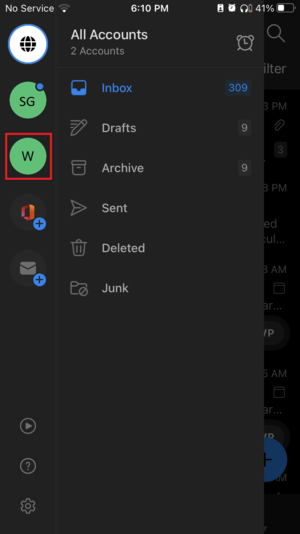
| − | # '''Verify the inbox has been added''' by clicking the profile picture at the top left. You should now have an additional profile icon listed below your own. <br /> [[File:Shared_Inbox_IOS_Step7.png| | + | # '''Verify the inbox has been added''' by clicking the profile picture at the top left. You should now have an additional profile icon listed below your own. <br /> [[File:Shared_Inbox_IOS_Step7.png|300px]] |
====Still Need Help?==== | ====Still Need Help?==== | ||
<p> If you’ve followed this guide but can’t get your shared inbox open in your browser, reach out to support@evergreen.edu or submit a help ticket at help.evergreen.edu </p> | <p> If you’ve followed this guide but can’t get your shared inbox open in your browser, reach out to support@evergreen.edu or submit a help ticket at help.evergreen.edu </p> | ||
| − | + | |sidebar= | |
---- | ---- | ||
{{GetHelp}} | {{GetHelp}} | ||
Revision as of 17:18, 3 February 2025

Accessing Outlook via the IOS Application:
- Open the Outlook IOS app and sign into your Evergreen account.
- Open the Profile Menu. In the top left corner, click on your profile picture. This will open a menu.
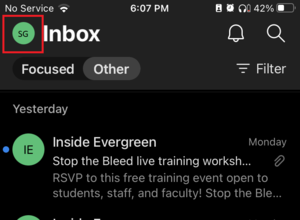
- TIP: Your profile pic may be a large colored circle with you account initials on it if a picture has not been set.
- Tap the gear icon in the bottom left to open the settings menu.
- Tap "Add Mail Account". This will open a small menu at the bottom of the screen.
- Tap "Add Shared Mailbox".
- Enter your shared inbox address. Type in the email address for the shared inbox you need to open. Then tap the "Add Shared Mailbox" button below it.
- Verify the inbox has been added by clicking the profile picture at the top left. You should now have an additional profile icon listed below your own.


Still Need Help?
If you’ve followed this guide but can’t get your shared inbox open in your browser, reach out to support@evergreen.edu or submit a help ticket at help.evergreen.edu
Get Help

Submit a technology support request
No account or having problems logging in?
Request help as a guest

