
BeatStepPro MIDI to CV
Contents
Connecting the BeatStep Pro to Ableton Live for MIDI-to-CV
Overview
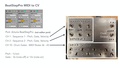
The Arturia BeatStep Pro can act as a MIDI-to-CV converter, letting Ableton Live control analog gear (like Eurorack modules or vintage synths) through control voltage signals. This setup routes MIDI from Ableton into the BeatStep Pro, which then outputs pitch, gate, velocity, and drum triggers as CV through a custom patch box.
Step 1: Choose the Correct Port
When setting MIDI output in Ableton, select the port labeled Arturia BeatStepPro — not the editor port. The editor port is reserved for Arturia's MIDI Control Center software and will not pass notes to the CV outputs.
Step 2: Set Up MIDI Tracks in Ableton
You can set up up to three MIDI tracks depending on what you need to control — only create tracks for the voices you actually want to use. Each track is configured the same way except for the output channel:
- MIDI From: All Ins, All Channels
- Monitor: Auto
- MIDI To: Arturia BeatStepPro
Assign each track you create to the appropriate MIDI channel:
- Channel 1 — drives Sequence 1 Output (pitch, gate, and velocity CV outputs)
- Channel 2 — drives Sequence 2 Output (pitch, gate, and velocity CV outputs)
- Channel 10 — drives the eight drum gate outputs.
For example, if you only need melodic control over one synth, a single track on Channel 1 is enough. If you want drums plus one melodic voice, use two tracks (Channels 1 and 10), and so on.
Step 3: Understand the Channel Mapping
The BeatStep Pro listens on specific MIDI channels for specific functions:
- Channel 1 controls the first melodic sequencer voice. Notes you play or sequence on this track come out of the Sequence 1 pitch, gate, and velocity jacks.
- Channel 2 does the same for the second melodic voice on the Sequence 2 jacks.
- Channel 10 controls the drum section. MIDI notes 36 through 43 each trigger one of the eight drum gate outputs (note 36 → drum 1, note 37 → drum 2, and so on).
Step 4: Patch the CV Outputs
The custom interface box exposes the BeatStep Pro's CV signals on 1/4" jacks:
- Sequence 1 and 2: each have three jacks — VELO (velocity), GATE, and PITCH
- Drum Gates: eight numbered jacks (1–8) for individual drum triggers
- Clock Out: sends timing pulses to sync other gear
- IN: MIDI input
Patch these to the corresponding inputs on your analog synth or modular system.
Step 5: Know the Voltage Standards
The CV signals follow common modular conventions:
- Pitch: 1 volt per octave (1v/oct) — the standard for most Eurorack and vintage synths
- Gate: 0v when a note is off, 12v when a note is on — a relatively hot gate signal, compatible with most modular gear
Putting It All Together
Once your Ableton tracks are routed to the appropriate channels on the BeatStepPro port, you can sequence melodic parts in Ableton and hear them come out of your analog gear as pitched CV, while drum patterns on Channel 10 fire gates to trigger percussion modules. Ableton becomes the brain; the BeatStep Pro becomes the translator.

