
Mackie Documentation
Contents
Full Manual
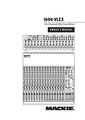
Mackie Channel Strip
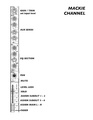
Top to Bottom: The Channel Strip
GAIN / TRIM
At the very top of the channel is the gain knob (labeled "MIC GAIN"), used to set the input level. The range runs from +15 dB to -45 dB (with a typical unity mark near the middle). This is the first thing you set when plugging in a source — too low and you'll have a weak, noisy signal; too high and the channel will distort. (See LEVEL LEDs for additional info)
AUX SENDS
Below the gain are the aux send knobs, used to route a portion of the channel's signal to the mixer's auxiliary buses (for monitor mixes, effects, etc.). Each knob ranges from −∞ (off) to +15 dB with a unity (U) mark. The layout shows:
- Aux 1 and Aux 2 — two dedicated sends
- Aux 3 / 5 and Aux 4 / 6 — shared knobs that switch function based on the 5/6 SHIFT button below them
- A PRE switch determines whether the send is taken pre- or post-fader
EQ SECTION
The 3-band EQ sits in the middle of the strip:
- HI — high-frequency shelf at 12 kHz, ±15 dB
- MID — sweepable mid with a frequency knob (100 Hz – 8 kHz range, typically centered around 800 Hz – 2 kHz) and a ±15 dB gain knob
- LOW — low-frequency shelf at 80 Hz, ±15 dB
- LOW CUT — a high-pass filter button (75 Hz, 18 dB/octave) to remove rumble
PAN
Below the EQ, the pan knob places the channel in the stereo field, sweeping from L to R.
MUTE
The MUTE button silences the channel. The number (here "1") indicates the channel number.
LEVEL LEDS
Two small LEDs next to the fader show signal activity:
- OL (overload) — lights when the channel is clipping
- −20 — lights when signal is present at a healthy level
These help you set proper gain and watch for overloads during performance.
SOLO
The SOLO button isolates this channel for monitoring — lets you hear just this channel in your headphones or control room output without affecting the main mix.
ASSIGN Buttons
Three routing buttons determine where the post-fader signal is sent:
- 1–2 — assigns to subgroup bus 1/2
- 3–4 — assigns to subgroup bus 3/4
- L–R — assigns to the main stereo output
A channel can be assigned to any combination of these simultaneously.
FADER
At the bottom, the channel fader sets the overall level of the channel in the mix, running from −∞ (off) up through unity and into positive gain.
Summary
Reading the strip top to bottom mirrors a typical workflow: set gain first, dial in aux sends for monitors/effects, shape tone with the EQ, place the signal with pan, use mute and solo as needed, watch the level LEDs, pick your assigned outputs, then ride the fader for the mix.
Mackie Channel Signal Flow

The Main Signal Path
Audio flows left-to-right through the channel strip in this order:
- INPUT — the physical jack where your source (mic, instrument, line-level device) enters the channel
- TRIM — input gain stage that sets the proper signal level for the channel
- INSERT — send/return point for patching in external processing (compressors, effects, etc.)
- LOW CUT — high-pass filter to remove low-frequency rumble
- EQ — tone-shaping equalizer
- MUTE — a switch that silences the channel when engaged
- FADER — the channel volume control
- PAN — places the signal in the stereo field (left-to-right)
- ASSIGN — routes the post-fader signal to the chosen stereo output bus
Output Destinations
After the assign stage, the signal can be sent to any of the Stereo Outs:
- L/R — the main mix output
- 1/2 — subgroup bus 1/2
- 3/4 — subgroup bus 3/4
A channel can be assigned to any combination of these buses simultaneously.
The Direct Out
A Direct Out tap is taken immediately after the fader (post-fader, post-mute), providing a mono feed of that single channel. This is useful for multitrack recording — each channel can be sent to its own recorder input independently of the main mix.
Aux Sends and the Pre/Post Switch
The channel feeds two auxiliary sends, AUX 1 and AUX 2, which are commonly used for monitor mixes or effects sends. A PRE SWITCH determines where the aux send taps the signal from:
- "PRE" signal — taken before the fader and mute (after EQ). The aux send level is independent of the channel fader — useful for stage monitor mixes, where the performer's monitor level should stay constant even when the front-of-house fader moves.
- "POST" signal — taken after the fader and mute. The aux send level follows the fader — useful for effects sends (reverb, delay), so the effect level tracks the channel's mix level.
Each aux send has its own level knob (shown as AUX 1 and AUX 2 with their rotary controls) before going to the aux output buses.
Summary of Channel Signal Flow
A signal entering the channel is gained, filtered, EQ'd, muted (or not), and faded — then it splits three ways: to the assign matrix for the main stereo/subgroup mix, to the direct out for isolated recording, and to the aux sends (pre- or post-fader) for monitors and effects.
Output Section
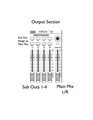
Sub Outs 1–4
Four dedicated subgroup faders (labeled 1, 2, 3, and 4), each with the same scale as a channel fader (−∞ to +10 dB, with unity marked as "U"). Subgroups are intermediate mix buses: instead of sending every individual channel straight to the main mix, you can route related channels (all the drums, all the backing vocals, etc.) to a subgroup fader, then control that whole group with a single fader.
Assign to Main Mix
Above each sub fader is a pair of buttons labeled LEFT and RIGHT under the heading "ASSIGN TO MAIN MIX". These determine whether each subgroup gets routed into the main stereo mix, and on which side:
- Pressing LEFT sends that subgroup to the left side of the main mix
- Pressing RIGHT sends it to the right side
- Pressing both feeds the subgroup to both sides (centered in the main mix)
- Pressing neither keeps the subgroup isolated — it goes out the Sub Out jacks on the back but does not get folded into the main mix (useful for independent recording feeds)
Main Mix L/R
To the right of the sub faders is the Main Mix fader, which controls the overall level of the stereo main output (the L/R bus going to your speakers, PA, or recording device). A headphone jack sits above it for monitoring.
Control Room Section
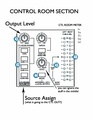
Source Assign
A column of four buttons labeled CTL ROOM SOURCE determines what gets sent to the control room output (and headphones):
- TAPE — monitors the tape input (playback)
- SUBS 1–2 — monitors subgroups 1 and 2
- SUBS 3–4 — monitors subgroups 3 and 4
- MAIN MIX — monitors the main stereo mix
Output Level
The CTL ROOM/PHONES knob at the top sets the monitor volume — how loud the control room speakers and headphones are. This is independent of the main mix fader, so you can turn your monitors up or down without affecting what the audience or recorder hears.
CTL Room Meter
A pair of LED ladders (LEFT and RIGHT) show the levels being sent to the control room output, calibrated so 0 dB on the meter equals 0 dBu at the output. Useful for confirming signal presence and watching for clipping while you monitor.
The Middle Stuff (Ignore)
The center area contains TAPE IN level, TAPE TO MAIN MIX, SOLO level, and MODE (Normal AFL / Level Set PFL) controls — these handle tape playback routing and solo bus behavior. For basic use you can safely ignore them; they only matter in specific workflows (returning a tape playback to the mix, or using PFL-style level-setting solo).

