Difference between revisions of "02R-APOLLO-PROTOOLS Cheat Sheet"
From Help Wiki
(→At a Glance) (Tag: VisualEditor) |
(Tag: VisualEditor) |
||
| Line 1: | Line 1: | ||
| − | == | + | == '''Directions for using the Yamaha 02R Console''': == |
| − | '''Directions for using the Yamaha 02R Console''': | + | |
* Locate Scene memory > Press '''Display''' > Toggle to Scene '''95 or 96''' > Press '''Recall''' | * Locate Scene memory > Press '''Display''' > Toggle to Scene '''95 or 96''' > Press '''Recall''' | ||
** Scene 95 is for Multitrack Recording, Scene 96 is for Surround Mixing. | ** Scene 95 is for Multitrack Recording, Scene 96 is for Surround Mixing. | ||
| Line 15: | Line 14: | ||
*Open Pro Tools and choose the '''API Stereo''' template; save to Storage drive in your folder with your name on it. | *Open Pro Tools and choose the '''API Stereo''' template; save to Storage drive in your folder with your name on it. | ||
*On Layer 25-48 of the 02R, channels 33 and 34 are the MAIN L/R OUT of Pro Tools (Main Out L/R comes out of outputs 9/10 of the Apollo X16). | *On Layer 25-48 of the 02R, channels 33 and 34 are the MAIN L/R OUT of Pro Tools (Main Out L/R comes out of outputs 9/10 of the Apollo X16). | ||
| − | + | ||
| − | '''Headphone Mixes''' | + | == '''Headphone Mixes''' == |
*Use the '''Encoder''' knobs on the 02R to control volume of channel going to headphones | *Use the '''Encoder''' knobs on the 02R to control volume of channel going to headphones | ||
*In the '''Encoder Mode''' section select '''AUX''' | *In the '''Encoder Mode''' section select '''AUX''' | ||
Latest revision as of 17:59, 18 February 2026
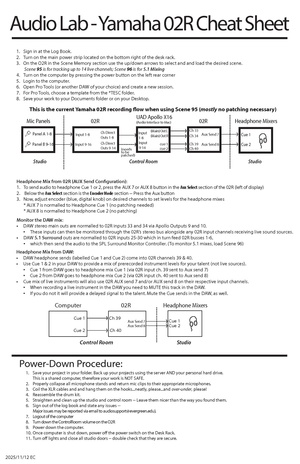
Directions for using the Yamaha 02R Console:
- Locate Scene memory > Press Display > Toggle to Scene 95 or 96 > Press Recall
- Scene 95 is for Multitrack Recording, Scene 96 is for Surround Mixing.
- Studio: Patch in microphone to Panel A, Input 1
(Mic panels in 1362 are normalled to the inputs of 02R MIC/LINE inputs)
- 02R - find Layer section and select Layer 1-24
- Trim out microphone on Channel 1 of the 02R, and use +48V On/Off switch as needed (for condenser microphones, etc.)
- Push fader up and you should see levels on the Meters
- Push up stereo fader (Main Mix fader)
- On the Control Room section, select STEREO
- Turn up Control Room Level light grey knob to control speaker volume
- Open Pro Tools and choose the API Stereo template; save to Storage drive in your folder with your name on it.
- On Layer 25-48 of the 02R, channels 33 and 34 are the MAIN L/R OUT of Pro Tools (Main Out L/R comes out of outputs 9/10 of the Apollo X16).
Headphone Mixes
- Use the Encoder knobs on the 02R to control volume of channel going to headphones
- In the Encoder Mode section select AUX
- Aux 7 is normalled to Cue 1, Aux 8 is normalled to Cue 2
- Use the Encoder knob on your LIVE channel to control volume to the headphones
- Use the Encoder knob on channels 33 and 34 to control volume from Pro Tools Main L/R to the headphones