Difference between revisions of "Simple Flow Diagram-SFX Studio"
From Help Wiki
(→Headphpone Amp) (Tag: VisualEditor) |
(→Headphpone Amp) (Tag: VisualEditor) |
||
| Line 20: | Line 20: | ||
* Each channel has a knob for the level control. | * Each channel has a knob for the level control. | ||
| + | == Simple Flow Diagram == | ||
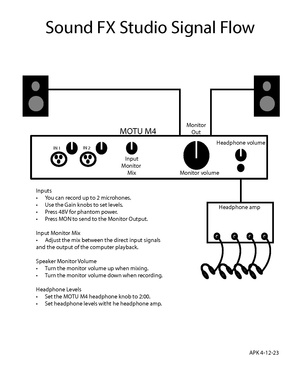
[[File:SFX-Studio-Signal-Flow.pdf|alt=Diagram showing the signal flow for a sound effects studio using a MOTU M4 interface.|thumb|none]] | [[File:SFX-Studio-Signal-Flow.pdf|alt=Diagram showing the signal flow for a sound effects studio using a MOTU M4 interface.|thumb|none]] | ||
[[Category:Sound Effects Studio]] | [[Category:Sound Effects Studio]] | ||
Latest revision as of 15:52, 13 March 2026
Contents
Inputs
- You can record up to 2 microhones.
- Use the Gain knobs to set levels.
- Press 48V for phantom power.
- Press MON to send to the Monitor Output.
Input Monitor Mix
- Adjust the mix between the direct input signals and the output of the computer playback.
Speaker Monitor Volume
- The monitor outputs are connected to stereo powered speakers.
- Turn the monitor volume up when mixing.
- Turn the monitor volume down when recording.
Headphone Levels
- Set the MOTU M4 headphone knob to 2:00.
Headphpone Amp
- The headphone output of the MOTU M4 is conected to a 4 channel headphone amp.
- Each channel has a knob for the level control.