==== For Use Within the SEM I Classrooms • Extron touch panels ==== Everything in the room runs from the touch panel at the podium. Tap the panel to wake it. The room name and number are always shown along the bottom of the screen. Note them if you need to call for help from IT Support. === Start here === Tap on the Start Screen to activate the classroom systems. Then you have two ways to get a picture on the projector. Pick the one that matches what you are teaching from. ==== Teaching from the classroom computer (Mac Mini) ==== # Tap the panel to wake it. # Tap Mac Mini. The tile turns green and reads Video Detected when the computer is sending a picture. # If the projector's screen is still up, tap the down arrow under Screen Controls. # Set the volume with the Vol slider on the right edge of the panel. ==== Presenting from your own laptop ==== # Plug the podium HDMI cable into your laptop. Bring your provided adapter if your laptop does not have a full-size HDMI port. We should have adapters available in the classrooms but they have been known to walk off. # Tap HDMI. # Wake your laptop and keep it awake, a sleeping laptop sends no picture. # If the tile stays grey and reads No video - Check the Source, see If something is not working below. Note: the room cameras and meeting controls are only available on the Mac Mini source. If you are teaching over Zoom or Teams from your own laptop, the room cameras will not be available to it. === Home Screen and Functions ===
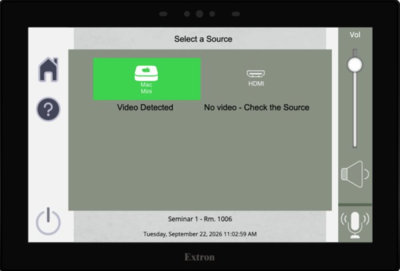
Home screen - choose your source {